
Have you ever opened your iPad hoping to organize your life, only to find yourself switching between multiple apps, scattered notes, endless to-do lists, and unfinished plans?
You are not alone. Digital planning can make everyday life more organized, but without a simple system, it can quickly become overwhelming.
Imagine opening your iPad and finding everything you need in one beautiful, organized space: your daily schedule, personal goals, weekly priorities, habit tracker, journal, and important reminders. No clutter, no unnecessary distractions, and no complicated productivity system.
That is the beauty of a minimalist digital life planner.
Whether you are a student, a busy professional, a creative entrepreneur, or someone working toward a more intentional lifestyle, setting up a digital planner on your iPad can help you manage your responsibilities while making room for personal growth.
The best part? You do not need expensive accessories, advanced design skills, or a complicated collection of apps. You can start from scratch using a few simple tools and customize your planner to suit your lifestyle.
In this guide, you will learn how to set up a minimalist digital life planner on your iPad, choose the right planning app, design an aesthetic dashboard, organize your daily routine, build habit trackers, and create a system you will actually enjoy using.
What Is a Minimalist Digital Life Planner?
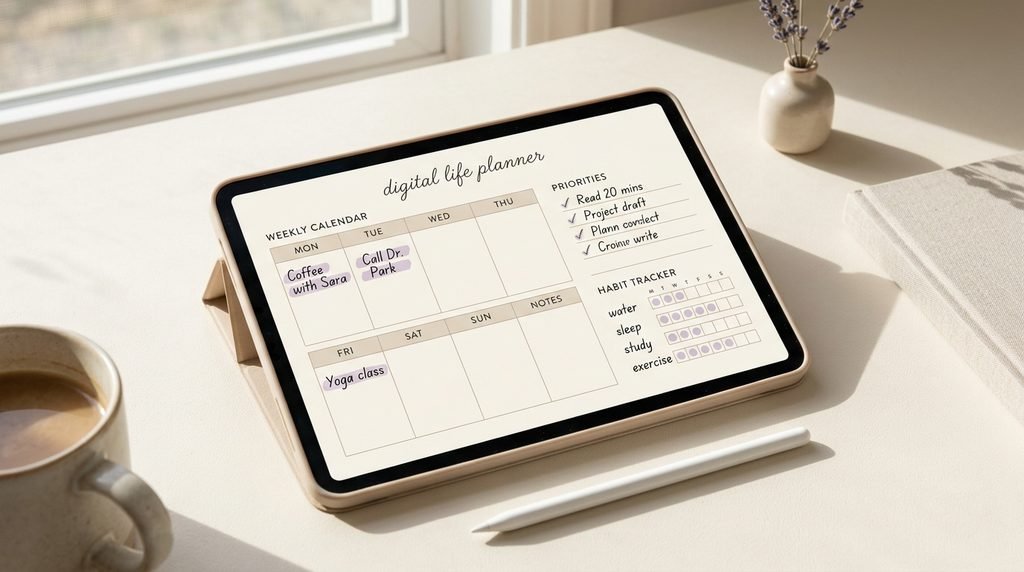
A minimalist digital life planner is an electronic organization system that brings your essential planning activities together in one convenient place.
Instead of maintaining separate notebooks for appointments, goals, habits, personal reflections, and daily tasks, you create a structured digital workspace that helps you see what matters most.
A minimalist digital life planner typically includes:
- A daily schedule and task list.
- Weekly and monthly planning pages.
- Personal and professional goals.
- Habit and routine trackers.
- Notes and journaling pages.
- Important dates and reminders.
- Optional sections for budgeting, meal planning, wellness, and projects.
The goal is not to include as many features as possible. It is to create a system that makes your life easier.
A planner with six well-designed sections that you use consistently can be far more useful than a planner with dozens of pages you never open.
Minimalist digital planning focuses on clarity, simplicity, and intentional organization.
Why Use an iPad for Digital Life Planning?
An iPad offers a flexible way to organize your schedule, capture ideas, track progress, and manage everyday responsibilities.
Unlike a traditional paper planner, a digital planner can be annotated, duplicated, customized, and stored alongside your other digital resources. Depending on the app you choose, you may also be able to search notes, synchronize information across devices, and navigate between sections using links.
Here are some of the main benefits.
1. Keep Your Important Information in One Place
You can create a central dashboard that connects your daily schedule, goals, projects, and notes.
This reduces the need to search through multiple notebooks or remember where you wrote something down.
2. Customize Your Planning Experience
You can choose your preferred layout, colors, fonts, and planning categories.
Some people prefer clean black-and-white layouts, while others enjoy cream backgrounds, muted lavender accents, and elegant typography. Your planner should reflect your personal preferences without compromising readability.
3. Plan With Handwriting or Typing
With a compatible app, you can use an Apple Pencil for handwriting and annotations or type using the iPad’s keyboard.
You do not need an Apple Pencil to start digital planning.
4. Make Planning More Flexible
Digital planning makes it easier to rearrange tasks, duplicate templates, and update your system as your priorities change.
You can start with a basic setup and gradually add features when you genuinely need them.
5. Build a More Intentional Daily Routine
A planner can help you identify your priorities, manage commitments, and make time for activities that matter to you.
It will not automatically make you productive, but a realistic planning routine can make it easier to follow through on your intentions.

Step 1: Choose the Best Digital Planning App for Your iPad
Before designing your planner, choose where you want to organize your information.
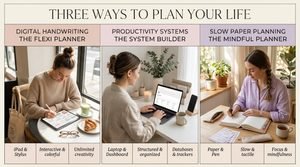
The right app depends on whether you prefer handwriting, typing, databases, or a combination of different methods.
Goodnotes: Best for Handwritten Digital Planning
Goodnotes is a popular option for people who enjoy handwriting, annotating PDFs, and using digital planner templates.
It is particularly suitable for aesthetic planners with daily schedules, weekly spreads, clickable navigation tabs, and journaling pages.
Choose Goodnotes if you want to:
- Write with an Apple Pencil.
- Use a downloadable PDF planner.
- Annotate and personalize planner pages.
- Create a paper-like digital planning experience.
- Combine handwriting with digital organization.
Check the current app version and plan details to confirm which features are available.
Notion: Best for an All-in-One Digital Dashboard
Notion is useful for people who prefer typed notes, databases, project management, and customizable dashboards.
You can create a home page containing linked sections for goals, tasks, reading lists, projects, and personal notes.
Choose Notion if you want searchable information, interconnected pages, flexible databases, and a system that can work across supported devices.
However, Notion has a different workflow from a handwritten PDF planner. If you enjoy writing directly on planner pages, Goodnotes may be a better starting point.
Apple Calendar, Reminders, and Notes: Best for a Simple Setup
If you want to begin without purchasing a separate planning app, consider using Apple’s built-in tools.
Use Calendar for appointments, Reminders for actionable tasks, and Notes for ideas and reflections.
This approach can be particularly useful if you prefer a straightforward system rather than a highly customized planner.
Which App Should You Choose?
For a handwritten, minimalist planner with attractive layouts, start with Goodnotes.
For a customizable productivity dashboard with databases, choose Notion.
For basic scheduling and everyday notes, Apple’s built-in apps may be sufficient.
Important tip: Choose one primary planning system first. Using several apps without clearly defined purposes can create more digital clutter instead of reducing it.

Step 2: Decide What You Want Your Planner to Organize
One of the biggest mistakes beginners make is designing a planner before deciding what they actually need.
Before creating your first page, identify the areas of your life that would benefit from better organization.
Ask yourself:
- Do I struggle to manage my daily schedule?
- Do I forget appointments or important deadlines?
- Do I want to develop healthier habits?
- Do I need to organize my work or studies?
- Do I want to make progress toward personal goals?
- Do I need a dedicated place for journaling and reflection?
Choose three to five priorities.
For example, a student might focus on assignments, study sessions, exams, personal goals, and habits.
A creative entrepreneur might prioritize projects, business tasks, appointments, content planning, and personal wellness.
Someone embracing a more intentional lifestyle might focus on routines, self-care, personal development, relationships, and weekly reflections.
The Five-Area Planning Method
A simple starting system can be divided into five areas.
Time: Appointments, schedules, deadlines, and events.
Tasks: Actions you need to complete.
Goals: Personal ambitions, professional objectives, and milestones.
Habits: Small routines you want to practice consistently.
Reflection: Journaling, lessons learned, and progress reviews.
These five areas provide enough structure for most beginners without making the planner unnecessarily complicated.
Step 3: Choose a Minimalist Color Palette and Design Style
Your digital planner should be visually appealing, easy to read, and comfortable to use.
However, an aesthetic planner does not need dozens of colors, decorative stickers, or elaborate layouts.
Minimalism means making deliberate design choices.
Create a Soft Neutral Color Palette
For a timeless, sophisticated appearance, consider combining:
- Warm ivory: #FAF8F4
- Soft beige: #E7DDD2
- Warm charcoal: #514B48
- Muted lavender: #C8B9E8
Use ivory for backgrounds, beige for section dividers, charcoal for readable text, and lavender for subtle highlights.
You can also experiment with sage green, dusty pink, or grayscale if those colors suit your preferences better.
The key is consistency. Reusing the same small color palette throughout your planner makes it feel cohesive.
Keep Your Typography Simple
Choose one readable font for body text and, if you prefer, one complementary font for headings.
Avoid tiny text, excessive decorative fonts, and long handwritten headings that are difficult to read on a screen.
Remember that your planner is a practical tool, not simply a design project.
Use White Space Intentionally
Do not fill every empty area with quotes, stickers, icons, or illustrations.
White space improves visual clarity and helps important information stand out.
A useful test is to open your planner and ask yourself whether you can find your main priorities within a few seconds.
If you cannot, simplify the layout.

Step 4: Create Your Main Digital Planner Dashboard
Your dashboard is the home page of your digital life planner.
It should help you understand what needs attention today and make it easy to navigate to other sections.
Think of it as the entrance to your personal organization system.
What Should Your Dashboard Include?
Start with these essential elements:
- Today’s date.
- Your three main priorities.
- Upcoming appointments.
- A short task list.
- A habit checklist.
- Links to your main planner sections.
- A small area for quick notes.
If you use Goodnotes, you can create a PDF dashboard with clickable tabs linking to different pages.
If you use Notion, you can create a central page with linked sections and database views.
Example of a Minimalist Planner Dashboard
YOUR LIFE, SIMPLIFIED
Today’s focus: Complete what matters most.
My top three priorities
- Finish my main project.
- Review my upcoming schedule.
- Make time for personal wellness.
Quick navigation
- Daily planner
- Weekly overview
- Monthly calendar
- Goals and projects
- Habit tracker
- Notes and reflections
This structure is intentionally simple. You can add more sections later, but your home page should highlight your priorities rather than display every detail at once.
Step 5: Set Up Your Monthly Planning Page
Your monthly overview helps you see the bigger picture.
It answers the question: What matters most this month?
Create a monthly calendar with enough space to record important dates, appointments, and deadlines.
Below or beside the calendar, add a few small sections for monthly goals, upcoming events, and notes.
What to Include on Your Monthly Page
Monthly calendar: Record appointments, important dates, and deadlines.
Monthly goals: Identify up to three meaningful outcomes.
Important events: Track birthdays, celebrations, travel, or professional commitments.
Projects: Note major tasks or milestones that require attention.
Monthly reflection: At the end of the month, review your progress and decide what to adjust.
Avoid turning your monthly page into a long list of unrealistic resolutions.
Choose goals that reflect your actual responsibilities, available time, and personal priorities.
Step 6: Design a Weekly Planning Layout
Your weekly planner connects your bigger goals with the time you actually have available.
A useful weekly spread gives you a clear overview of your commitments while leaving enough flexibility for unexpected changes.
Essential Weekly Planner Sections
Include Monday through Sunday, with space for appointments, tasks, and important reminders.
Add a section for your three weekly priorities.
You can also include a small area for personal activities, routines, and weekly reflections.
At the beginning of each week, review your upcoming commitments and identify which tasks need to be completed first.
Estimate how much time your tasks will require instead of assuming you can accomplish everything at once.
Try Weekly Time Blocking
Time blocking involves assigning specific periods to activities or tasks.
For example, you might reserve the morning for focused work, the afternoon for meetings or errands, and the evening for personal activities.
Your schedule does not need to be rigid. Use time blocks as a guide and leave room for breaks and unexpected responsibilities.
The goal is to create a realistic plan, not to fill every minute of your day.

Step 7: Create a Simple Daily Planner Page
Your daily page is where planning turns into action.
It should help you understand your priorities, organize your time, and avoid becoming overwhelmed by a long list of tasks.
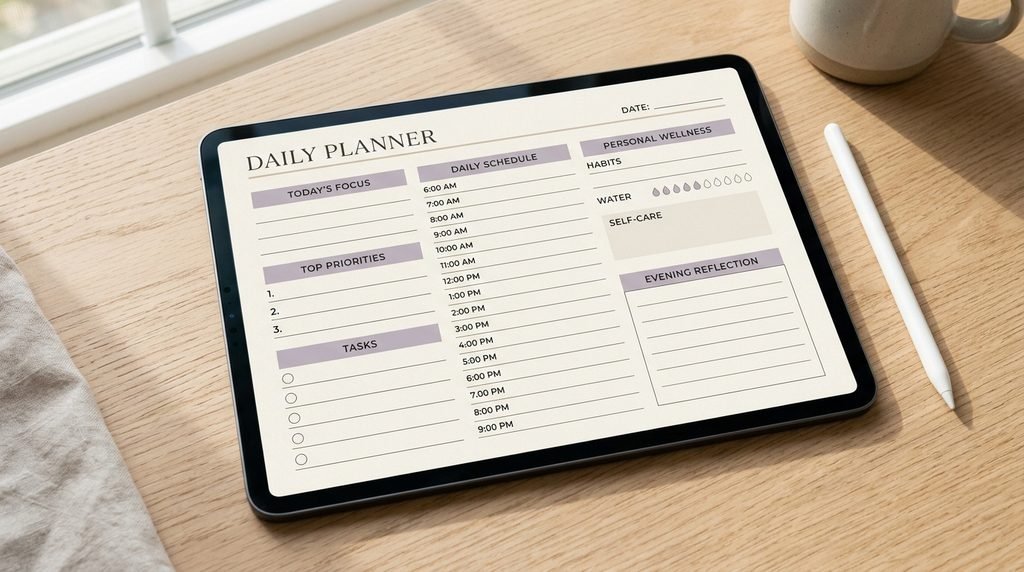
Start with six simple sections.
Today’s Focus
Write down the most important outcome you want to achieve.
This helps you stay focused when smaller tasks compete for your attention.
Top Three Priorities
Choose three meaningful tasks for the day.
They can be related to work, studies, household responsibilities, or personal development.
Keep the list realistic.
Daily Schedule
Record appointments, deadlines, work sessions, classes, and other time-specific commitments.
If you use a separate calendar app, you can refer to that calendar rather than duplicating every appointment.
Task List
Write down the smaller actions you need to complete.
Separate urgent tasks from optional tasks when necessary, and avoid carrying unfinished tasks forward automatically without reviewing them.
Personal Wellness
Include one or two activities that support your well-being, such as taking a walk, reading, preparing a proper meal, or taking a break from screens.
Your planner should support your life rather than turn every moment into a productivity exercise.
End-of-Day Reflection
Before finishing your day, ask yourself:
- What went well today?
- What did I accomplish?
- What needs attention tomorrow?
- What am I grateful for?
A short reflection can help you recognize progress and make more thoughtful plans for the following day.
Step 8: Add a Minimalist Habit Tracker
Habit trackers can help you monitor routines and recognize patterns in your behavior.
However, tracking too many habits can make your planner difficult to maintain.
Start with three to five habits that genuinely support your goals.
Examples include reading for ten minutes, practicing a new skill, taking a walk, planning your day, or spending a few minutes journaling.
Create a simple weekly grid with your habits listed vertically and the days of the week across the top.
Mark each habit when you complete it.
At the end of the week, review your progress and ask yourself which habits felt manageable and which need adjustment.
Make Your Habit Tracker Sustainable
Do not treat missed checkboxes as failures.
If a habit feels difficult to maintain, reduce the size of the action.
For example, replace a goal of reading for an hour with reading two pages. Once the smaller habit becomes comfortable, you can gradually increase it.
Your habit tracker should help you understand your routines, not create unnecessary pressure.
Step 9: Build a Personal Goals and Growth Section
A digital life planner should help you manage the present while keeping your future goals visible.
Create a dedicated goals page with four simple sections.
My goal: What do I want to achieve?
My reason: Why does this matter to me?
My next action: What is the smallest useful step I can take?
My review date: When will I evaluate my progress?
For example, if you want to launch a digital product, your next action might be to outline the product, create the first draft, or prepare its product description.
Breaking a large ambition into smaller actions makes it easier to get started.
Review Your Goals Every Three Months
A quarterly review gives you an opportunity to evaluate your progress and update your priorities.
Ask yourself what you have accomplished, which goals still matter, what obstacles keep appearing, and what you need to change.
You do not need an elaborate productivity framework. A few honest questions can help you maintain direction while adapting to changes in your life.
Step 10: Personalize Your Apple Pencil and Typing Workflow
Your planner should fit the way you naturally work.
If you use Goodnotes, experiment with handwriting, highlighting, page navigation, and PDF annotations.
If you use Notion, explore typed notes, linked pages, database views, and quick-entry options.
An Apple Pencil can make handwriting easier, but it is not essential. You can also use your fingers, an external keyboard, or the iPad’s on-screen keyboard.
Keep your handwriting readable, use a limited number of highlight colors, and make frequently used sections easy to access.
If you use a downloadable PDF planner, verify that it opens correctly in your chosen app and that its navigation links work as expected.
It is also worth checking your app’s synchronization, backup, and offline-access options so you understand how your information is stored and accessed.
Step 11: Create a Five-Minute Daily Planning Routine
A beautiful planner is only useful if you actually use it.
The easiest way to maintain your system is to connect it to a routine you already follow.
Your Morning Planning Routine
Spend approximately five minutes reviewing your day.
- Check your appointments and commitments.
- Select your three main priorities.
- Review unfinished tasks.
- Assign realistic time blocks where useful.
- Choose one personal-care activity.
This simple routine gives your day direction without requiring a long morning ritual.
Your Evening Reset
Spend two or three minutes reviewing your progress.
Move unfinished tasks to an appropriate date, record important reminders, and prepare your priorities for tomorrow.
Decide whether each unfinished task still matters, needs to be rescheduled, or can be removed.
You do not need to carry every unfinished task into the next day.
Your Weekly Reset
Once a week, review your calendar, update your task list, check your goals, and prepare your upcoming weekly spread.
This routine keeps your planner useful without making maintenance another major project.
Step 12: Build Your Planner From Scratch or Customize a Template?
You have two practical ways to set up your minimalist digital life planner.
Option A: Build Your Own Planner
Creating your planner from scratch gives you control over the layout, colors, navigation, and planning sections.
This approach is ideal if you enjoy designing and want a system tailored to your preferences.
However, building every page can take time, especially if you want a polished planner with clickable navigation.
Option B: Start With a Ready-Made Digital Planner
A ready-made digital planner provides a structure you can begin using immediately.
Depending on the template, it may include daily, weekly, and monthly pages, goal-setting sections, habit trackers, and notes pages.
You can then personalize your workflow without designing every page yourself.
If your main goal is to become organized quickly, this approach can be a practical starting point.
Explore the Artisan Anthology digital planner collection to discover digital planning options for your iPad workflow.
Before purchasing a template, check its file format, included pages, navigation features, and compatibility with your preferred app.
Common Digital Planning Mistakes to Avoid
Even a beautifully designed planner can become ineffective if the system is too complicated.
Avoid these common mistakes.
Creating too many pages: Begin with a dashboard, monthly calendar, weekly planner, daily page, habit tracker, and notes section. Add more only when necessary.
Spending more time decorating than planning: An attractive layout can make planning enjoyable, but functionality should remain the priority.
Tracking too many habits: Focus on a few meaningful routines instead of monitoring every part of your life.
Duplicating information across multiple apps: Give each tool a clear purpose so you do not waste time maintaining the same information in several places.
Planning every minute: Leave space for breaks, unexpected tasks, and changes in your schedule.
Abandoning the planner after missing a day: You do not need to start again from the beginning. Simply reopen your planner and continue.
Buying tools before understanding your needs: Start with the resources you already have and upgrade only when a specific limitation prevents you from working effectively.
The best digital life planner is not the one with the most features. It is the one that reduces friction in your everyday life.
Your Seven-Day Digital Life Planner Setup Plan
If you are unsure where to begin, use this simple seven-day schedule.
Day 1: Define your needs. Choose your planning app and identify the five areas of life you want to organize.
Day 2: Choose your aesthetic. Select your colors, typography, and visual style.
Day 3: Build your dashboard. Create your home page and navigation.
Day 4: Set up monthly and weekly planning. Add your calendar, appointments, and weekly priorities.
Day 5: Create your daily pages. Add your daily schedule, task list, goals, and habit tracker.
Day 6: Test your system. Use your planner with real appointments, tasks, and routines.
Day 7: Simplify and review. Remove unnecessary features and prepare your next week.
You do not need to complete everything in one sitting. Work at your own pace and refine the system as you discover what works for you.

Frequently Asked Questions
1. How do I make a digital life planner on an iPad from scratch?
Choose a planning app, identify your main planning categories, select a simple design, and create a dashboard with monthly, weekly, and daily pages. Add goals, habit tracking, and notes sections if needed. Test your planner with your actual schedule before adding more features.
2. What is the best app for digital planning on iPad?
Goodnotes is a strong choice for handwritten planning and PDF templates. Notion is useful for customizable dashboards and databases, while Apple Calendar, Reminders, and Notes provide a simple starting point. Your ideal app depends on whether you prefer handwriting, typing, or a combination of both.
3. Can I use a digital planner on my iPad for free?
Yes. You can begin with built-in apps, a free planning app, or a compatible free PDF template. Some apps and advanced features require payment, but an expensive setup is not necessary for basic digital planning.
4. Do I need an Apple Pencil for digital planning?
No. An Apple Pencil is useful for handwriting and annotating PDFs, but you can also use your fingers, an external keyboard, or the on-screen keyboard. Choose the method that feels most comfortable.
5. What should a minimalist digital planner include?
A useful minimalist planner typically includes a dashboard, monthly calendar, weekly planner, daily task list, goals page, habit tracker, and notes section. You can add budgeting, meal planning, or journaling pages when they address a specific need.
6. Is Goodnotes or Notion better for digital planning?
Goodnotes is better suited to handwritten PDF planning, while Notion is more suitable for interconnected databases, typed notes, and customizable dashboards. Neither is universally better; choose according to your preferred workflow.
7. How do I make my digital planner aesthetic?
Use a limited color palette, readable typography, consistent spacing, and simple navigation. Neutral colors, muted lavender, soft pink, or sage can create a calming appearance. Avoid overcrowding pages with unnecessary decorations.
8. How do I use a digital planner with an Apple Pencil?
Open a compatible PDF or planning document in an app that supports handwriting. Use the Pencil to write tasks, annotate schedules, check off habits, and record reflections. If your PDF includes hyperlinks, use the app’s supported navigation controls to move between sections.
9. Can a digital planner improve productivity?
A digital planner can help you organize tasks, identify priorities, manage deadlines, and review your progress. Its effectiveness depends on realistic planning and consistent use. It is a support tool rather than a guarantee of productivity.
10. How often should I update my digital life planner?
Review your priorities each morning, update unfinished tasks in the evening, and plan your upcoming week once a week. A monthly review can help you assess larger goals and remove sections you no longer need.
11. Can I customize a ready-made digital planner?
Yes, depending on the file format and app. Many PDF planners support handwriting, annotations, and stickers, while editable templates may offer more extensive design options. Check the template’s features and app compatibility before purchasing.
12. Where can I find minimalist digital planners for iPad?
You can explore the Artisan Anthology digital planner collection for digital planning options. Review the included pages, file format, supported apps, and instructions to find a suitable starting point.
Final Thoughts: Create a Digital Life That Feels Lighter
Setting up a minimalist digital life planner on your iPad is not about creating a perfect productivity system. It is about making everyday decisions easier, remembering what matters, and creating more room for the things you enjoy.
Start with a simple dashboard. Add only the pages you need. Choose a calming aesthetic, develop a short daily planning routine, and give yourself permission to change your system as your life evolves.
Your planner does not need to look perfect to work beautifully.
Whether you create every page from scratch or personalize a ready-made template, the real transformation happens when your digital planner becomes a practical part of your everyday life.
Ready to Make Digital Planning Easier?
Explore the Artisan Anthology digital planner collection to find a starting point for organizing your goals, managing your schedule, building better routines, and creating a more intentional lifestyle.
Choose a design that suits your workflow, personalize it to your needs, and make digital planning a simple part of your day.
Artisan Anthology LLC — Thoughtfully designed digital resources for your everyday life.
✨ About Artisan Anthology
At Artisan Anthology, we curate timeless digital creations designed to inspire and elevate every part of your lifestyle. Our collection includes brand books, digital templates, recipes, ebooks, wardrobe planners, fashion guides, printable wall art, and elegant home décor designs. We also specialize in wedding cards, invitations, baby shower cards, and engagement cards, each crafted to celebrate life’s most meaningful moments.
For professionals and dreamers alike, our CV templates, guided journals, and manifestation planners are created with intention to help you tell your story beautifully and authentically.
✨ Discover our full collection of digital products here → ArtisanAnthology.xyz